Chapter 2 - Assign to Copilot
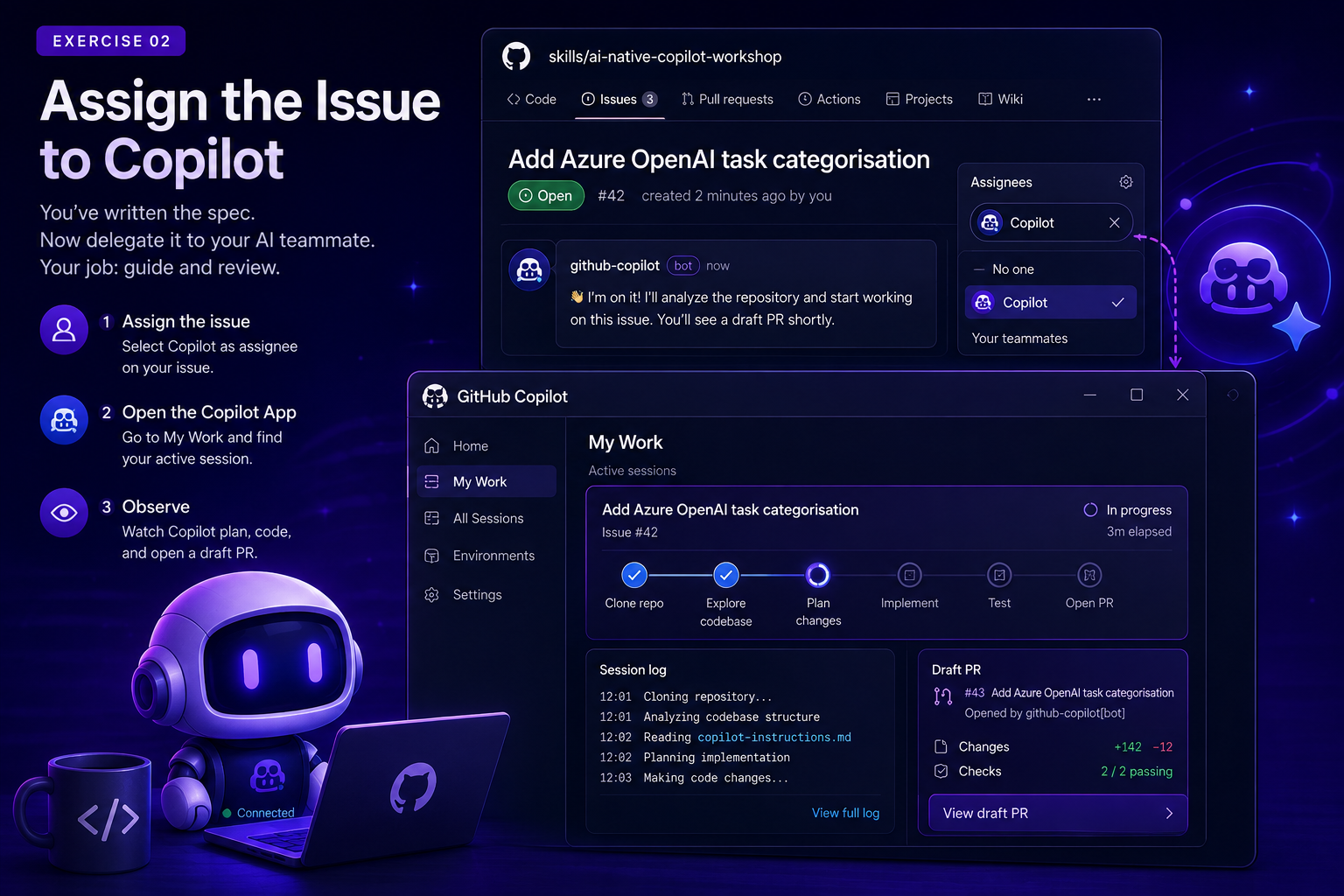
Assigning an issue is where the workflow shifts from maker mode to lead mode. You define what to build; Copilot executes in a controlled environment.
Goal
Delegate the issue you wrote in Chapter 1 to Copilot, observe it working in real time, then use Copilot Chat and the Copilot CLI to build your own understanding of the codebase while the agent works.
The Mindset Shift
In the old workflow, after writing an issue you would open your IDE and start coding. In the AI-native workflow, you've just delegated this task to a team member. Your job is now to guide and review, not type every line yourself.
Copilot spins up a secure, isolated GitHub-hosted environment (similar to an Actions VM) to do this work. It cannot touch your production environment, cannot merge without your approval, and keeps a full session log so you can see exactly what it did and why.
What happens in the secure sandbox
After assignment, Copilot runs in an isolated environment:
- Clones the target repository and checks out a working branch.
- Reads project structure, issues, and instructions (including
copilot-instructions.md). - Plans edits and applies code changes.
- Runs validation steps (tests/lint/build when available).
- Opens or updates a draft PR with a session log.
This isolation matters: no direct access to your local machine, no silent merge, and transparent change history.
How copilot-instructions.md influences output
copilot-instructions.md acts as persistent repository context. In this workshop repo it defines:
- Python 3.10+, typing, and style expectations
- Testing approach (
pytest, isolated fixtures) - Azure patterns for env vars and SDK usage
- Security expectations (no hardcoded credentials)
Think of this file as your team's "house rules" for every AI-generated change.
The GitHub Copilot App: what it is and when to use it
The GitHub Copilot App is a standalone desktop and mobile client (separate from your IDE) that gives you a dashboard for everything Copilot is doing across your repositories. It is not the same thing as the Copilot extension inside VS Code, it is a control plane for the asynchronous, agentic side of Copilot.
Use the Copilot App when you want to:
- Track active sessions across multiple repos and issues from one place (the "My Work" view).
- Delegate whole tasks to the coding agent instead of writing code yourself, then check back later.
- Review session logs without switching into your IDE, useful when you assigned work from your phone or another machine.
- Approve or comment on draft PRs on the go, before doing a deeper review in your IDE.
Use Copilot Chat or the CLI instead when you want:
- An immediate, conversational answer about code you are actively looking at (Chat).
- A quick terminal command explanation or suggestion without switching context (CLI).
- To stay in the loop synchronously, rather than delegate and check back later.
| Tool | Mode | Best for |
|---|---|---|
| Copilot App | Asynchronous, agentic | Delegating whole issues, tracking multiple sessions, reviewing on the go |
| Copilot Chat | Synchronous, conversational | Understanding code you're currently looking at, in-editor Q&A |
| Copilot CLI | Synchronous, terminal-based | Quick shell command help without leaving the terminal |
Your Task
Step 1 - Assign the Issue
- Open the issue you wrote in Chapter 1.
- In the Assignees panel on the right, click the gear icon.
- Search for and select Copilot from the list.
- Save the assignment.
You should see Copilot appear in the assignees list and a comment appear on the issue indicating it has picked up the work.
Step 2 - Open the Copilot App
- Open the GitHub Copilot App on your desktop.
- Navigate to the My Work view.
- Find the active session for your issue.
Step 3 - Observe
Watch Copilot work. You will see it:
- Clone the repository into a secure sandbox
- Explore the codebase to understand the existing structure
- Make code changes
- Open a draft PR with a session log explaining its decisions
Do not intervene yet. Just observe.
Step 4 - Explore with Copilot Chat
While the agent session runs in the background, open Copilot Chat in your editor (VS Code, JetBrains, or the github.com chat panel) against your local clone of starter-app. Try asking it:
@workspace explain how app.py stores and loads tasks@workspace what would I need to change to add a new field to a task?/explainon thelistcommand inapp.py
This is a different mode of working with Copilot: instead of delegating a whole task, you are having a conversation to build understanding. Notice how Chat answers are grounded in the actual files in your workspace, the same codebase the agent is currently editing in its sandbox.
Step 5 - Explore with the Copilot CLI
If you have the GitHub Copilot CLI installed, try it from your terminal in the repo root:
gh copilot suggest "run the starter-app tests and show a summary of failures"
gh copilot explain "python app.py stats"
The CLI is useful for quick, one-off questions and shell command help without leaving the terminal, a lighter-weight complement to the full agent workflow you triggered in Step 1.
What the session log contains
The session log is your audit trail. Expect to see:
- What files Copilot explored first
- Why it chose certain implementation paths
- Commands run for validation
- Any failures and subsequent fixes
- Final summary of completed work
Review this before reviewing the diff; it helps you catch mismatches between your intent and Copilot's assumptions.
Quick observer checklist
- Did Copilot interpret the issue correctly?
- Did it follow repo-specific instructions?
- Did it test what it changed?
- Did it explain tradeoffs and limitations?
- Did Chat/CLI answers match what the agent actually implemented?
Go Deeper: Awesome Copilot Learning Hub
For a structured, community-maintained path through everything Copilot can do, beyond this workshop, check out the Awesome GitHub Copilot Learning Hub. It covers:
- Getting-started guides for the Copilot App, Copilot Chat, and Copilot CLI
- Custom instructions and skills for tailoring Copilot to your team's standards
- Building custom agents and agentic workflows
- A cookbook of ready-to-use recipes for extending Copilot across languages and project types
It's a good next stop once you've finished this workshop and want to go beyond the issue-to-PR loop covered here.
Go Deeper (Optional): Scaling Up, From One Issue to a Fleet
Token cost warning
The two exercises linked below are heavier on AI usage than the one-issue, one-agent loop you just ran. /fleet and /squad both spin up multiple agent sessions instead of one. If you're on a personal/paid plan and don't have a real project in mind to justify it, it's fine to just read this section and the linked exercises, and skip running them live.
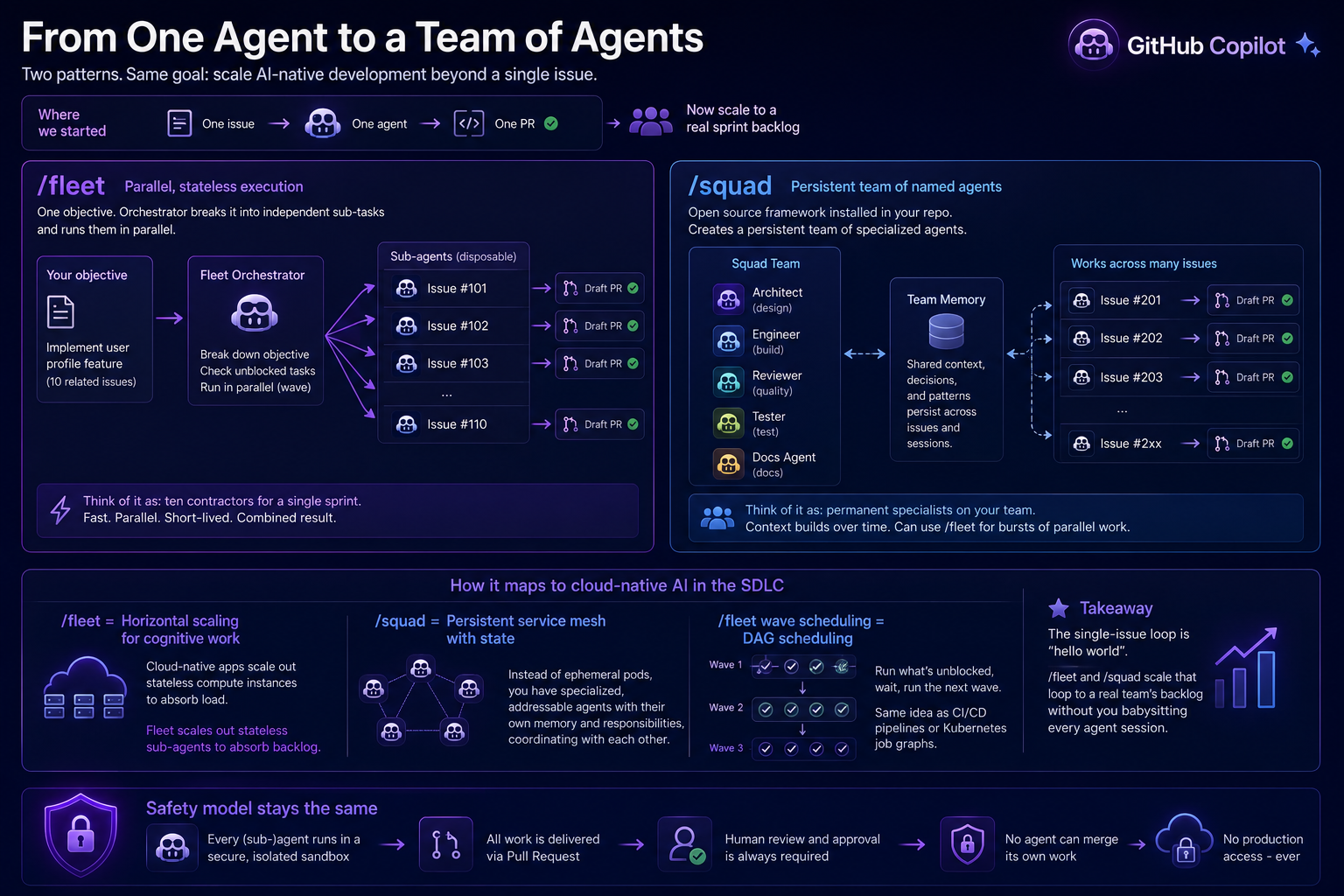
So far you've done the smallest possible unit of AI-native work: one issue, one agent, one PR. That's the right place to start, but it doesn't scale to a real sprint, where you might have ten issues in flight. This is where /fleet and /squad come in, two different answers to the same question: how do I go from one developer directing one agent, to a whole team directing many agents at once?
/fleet: parallel, stateless execution
/fleet is a Copilot CLI command built for parallel, stateless execution. You give it one objective, and an orchestrator agent breaks that objective into independent sub-tasks, checks which ones are unblocked, and runs them in parallel.
Think of it like this: if today's single Copilot agent is one developer picking up one issue, /fleet is like assigning ten related issues at once and having ten short-lived contractors work them simultaneously, then handing back the combined result.
Ready to try it? Exercise 02A - Parallel Execution with /fleet walks through pre-reqs, installing the Copilot CLI, and running your own /fleet prompt step by step.
/squad: a persistent team of agents
/squad is a different shape of answer. It's not a single CLI command, it's an open source framework you install into your repo that creates a persistent team of named agents. Unlike Fleet's disposable sub-agents, Squad agents stick around across issues and sessions.
If Fleet is contractors for a single sprint, Squad is closer to hiring permanent specialists onto your team: they build context over time, and they can even use Fleet internally when they need a burst of parallel throughput.
Ready to try it? Exercise 02B - A Persistent Team with /squad walks through pre-reqs, installing the Squad CLI, initializing a team, and delegating a task to a named specialist.
Why this maps to cloud-native architecture
/fleetis horizontal scaling for cognitive work. A cloud-native app scales out stateless compute instances behind a load balancer to absorb load;/fleetscales out stateless sub-agents to absorb a backlog./squadis closer to a long-lived service mesh with persistent state. Instead of ephemeral pods, you have specialized, addressable agents with their own memory and responsibilities, coordinating with each other.- Wave-based dependency scheduling inside
/fleet, run what's unblocked, wait, run the next wave, is conceptually the same DAG scheduling you already know from CI/CD pipelines or a Kubernetes job graph.
The takeaway: the single-issue loop from this chapter is the "hello world". /fleet and /squad are how that same loop scales to a real team's backlog without you personally babysitting every single agent session.
The safety model doesn't change
Neither /fleet nor /squad change the core safety model. Every sub-agent, whether disposable (Fleet) or persistent (Squad), still opens a PR, still cannot merge its own work, and still runs in an isolated sandbox with no production access, all governed by the same GitHub control plane you saw earlier in this chapter. More agents means more parallel proposals for you to review, not less review.
Reflection Questions
- What surprised you about how Copilot approached the task?
- Did it interpret your issue the way you intended?
- What would you write differently in the issue now that you've seen the result?
- When would you reach for the Copilot App versus Chat or the CLI in your own work?
Next Step
Once Copilot has opened a draft PR, move on to Chapter 3 - Review a Draft PR.