Getting hands on with the GitHub App and CLI
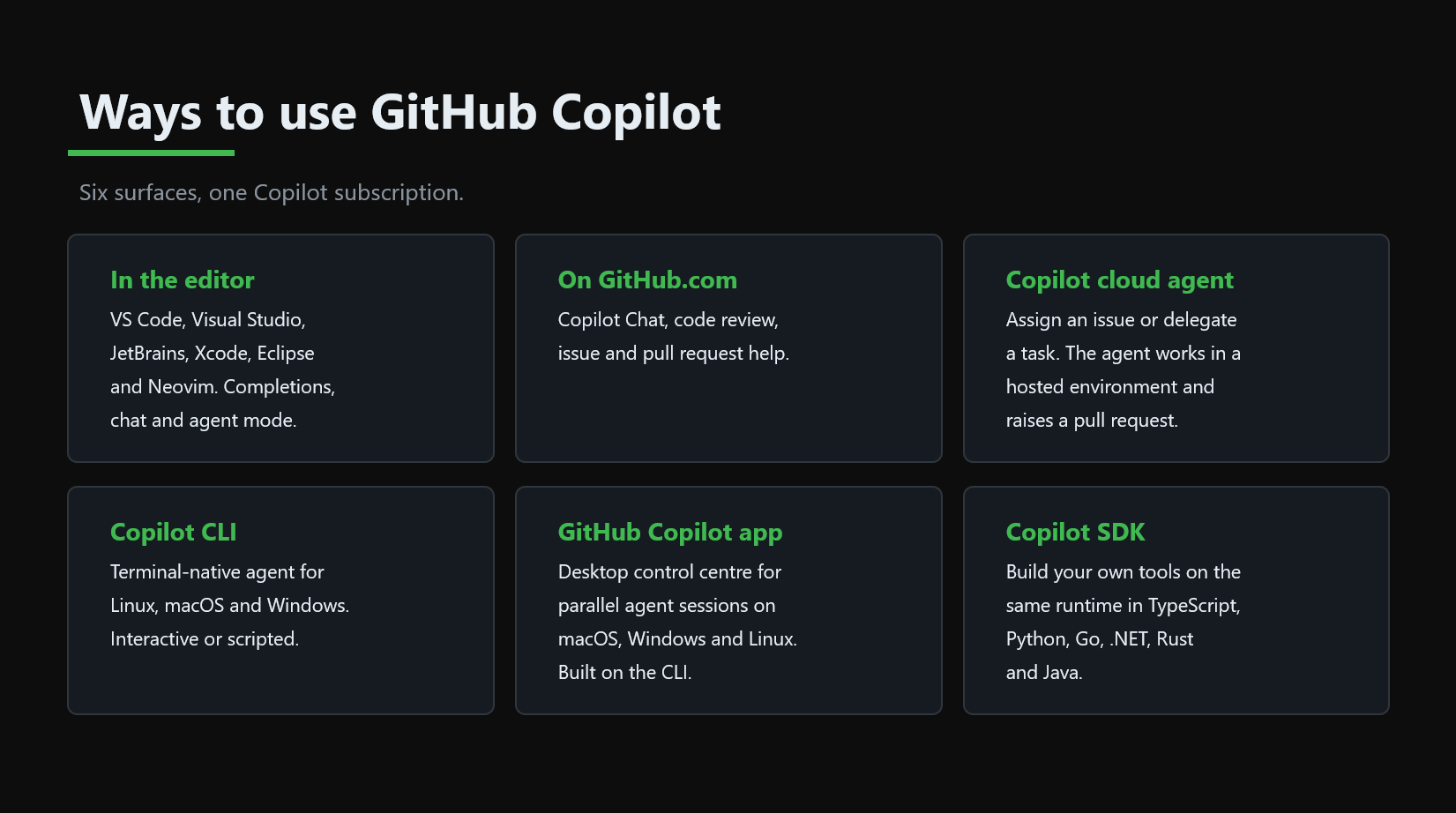
Six surfaces, one Copilot subscription
GitHub Copilot isn't a single tool anymore - it's a runtime that shows up in six places, all backed by the same subscription and the same underlying agent:
In the editor
VS Code, Visual Studio, JetBrains, Xcode, Eclipse and Neovim. Completions, chat and agent mode.
On GitHub.com
Copilot Chat, code review, issue and pull request help.
Copilot cloud agent
Assign an issue or delegate a task. The agent works in a hosted environment and raises a pull request.
Copilot CLI
Terminal-native agent for Linux, macOS and Windows. Interactive or scripted.
GitHub Copilot app
Desktop control centre for parallel agent sessions on macOS, Windows and Linux. Built on the CLI.
Copilot SDK
Build your own tools on the same runtime in TypeScript, Python, Go, .NET, Rust and Java.
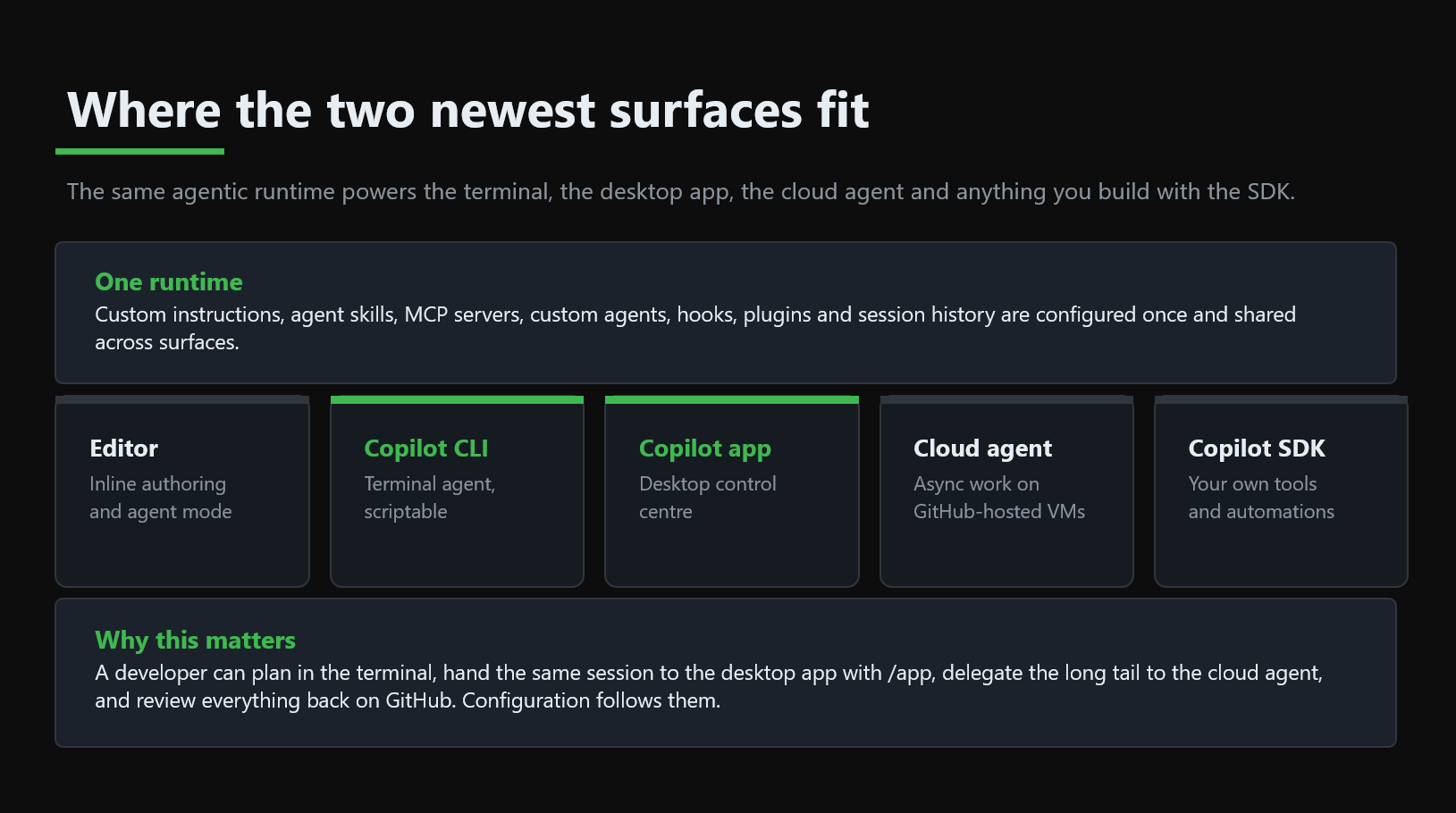
Where the two newest surfaces fit
The Copilot CLI and the GitHub Copilot app are the newest additions, and they share one runtime: custom instructions, agent skills, MCP servers, custom agents, hooks, plugins and session history are configured once and shared across surfaces.
- Editor - inline authoring and agent mode.
- Copilot CLI - terminal agent, scriptable.
- Copilot app - desktop control centre.
- Cloud agent - async work on GitHub-hosted VMs.
- Copilot SDK - your own tools and automations.
Why this matters: a developer can plan in the terminal, hand the same
session to the desktop app with /app, delegate the long tail to the cloud
agent, and review everything back on GitHub. Configuration follows them.
The governance model
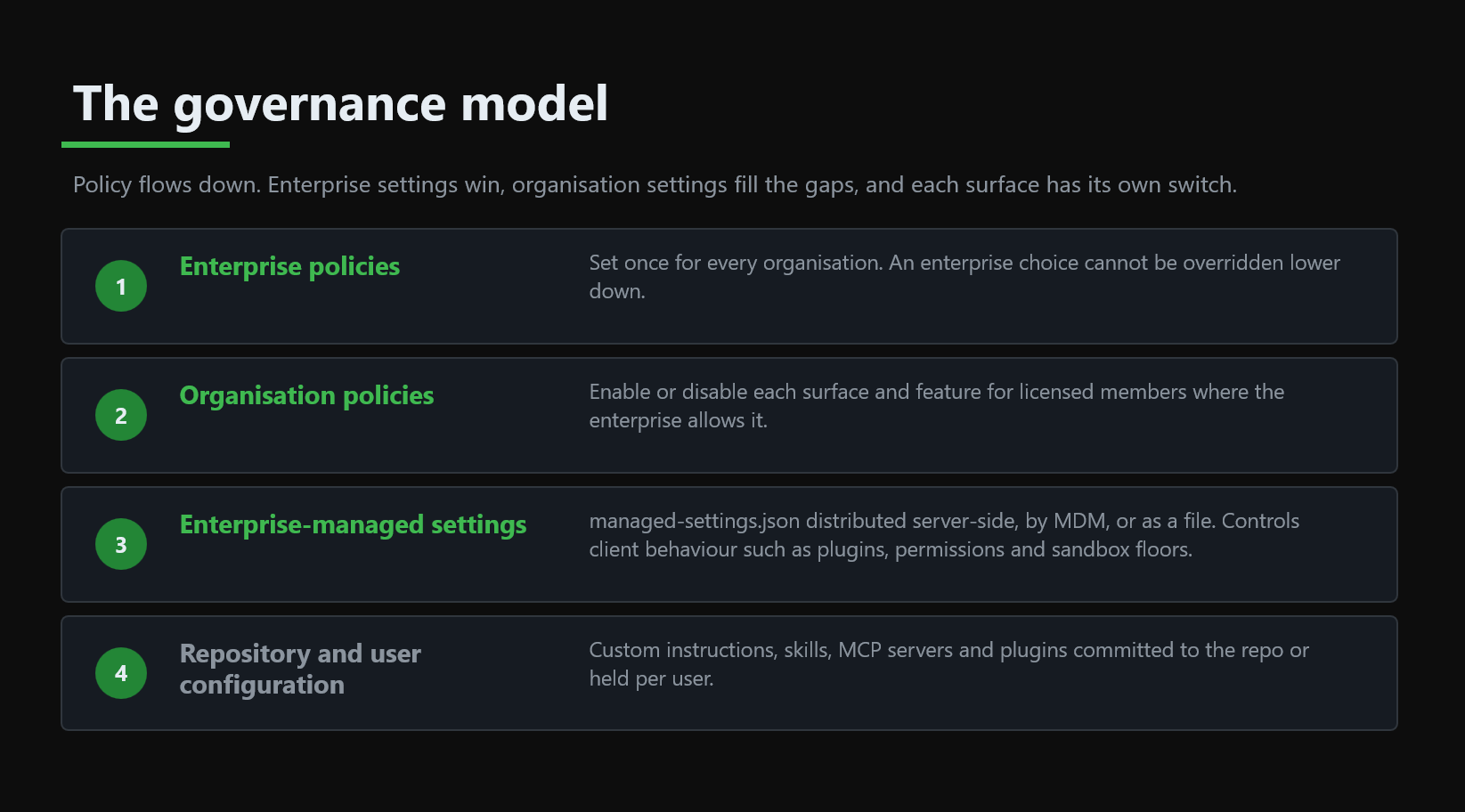
Policy flows down. Enterprise settings win, organisation settings fill the gaps, and each surface has its own switch:
- Enterprise policies - set once for every organisation. An enterprise choice cannot be overridden lower down.
- Organisation policies - enable or disable each surface and feature for licensed members where the enterprise allows it.
- Enterprise-managed settings -
managed-settings.jsondistributed server-side, by MDM, or as a file. Controls client behaviour such as plugins, permissions and sandbox floors. - Repository and user configuration - custom instructions, skills, MCP servers and plugins committed to the repo, or held per user.
How to enable each surface
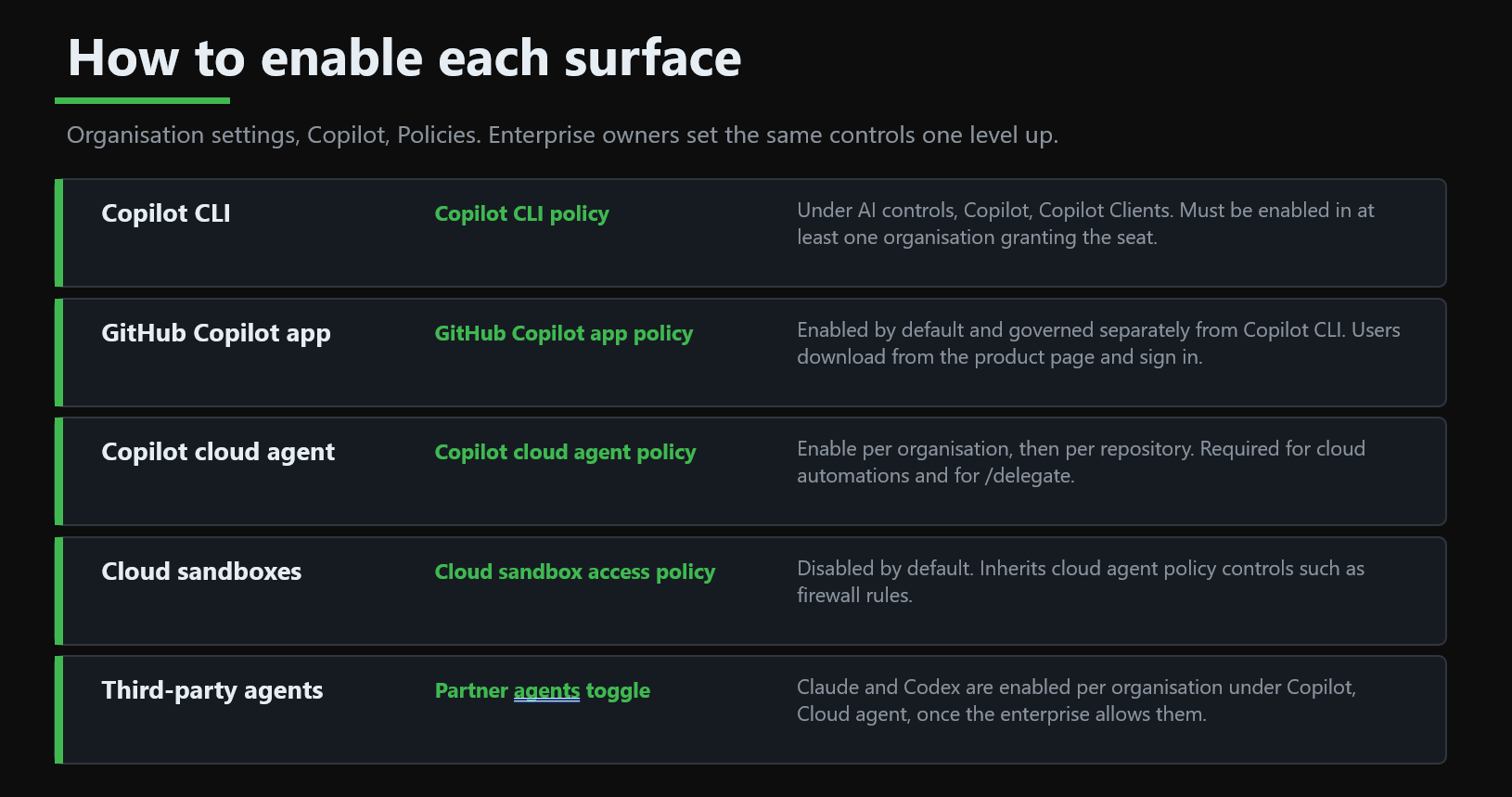
| Surface | Where it's controlled | Notes |
|---|---|---|
| Copilot CLI | Organisation → Copilot → Copilot CLI policy | Must be enabled in at least one organisation granting the seat |
| GitHub Copilot app | GitHub Copilot app policy | Enabled by default, governed separately from the CLI |
| Copilot cloud agent | Copilot cloud agent policy | Enable per organisation, then per repository |
| Cloud sandboxes | Cloud sandbox access policy | Disabled by default; inherits cloud agent controls such as firewall rules |
| Third-party agents | Partner agents toggle | Claude and Codex enabled per organisation once the enterprise allows them |
GitHub Copilot CLI
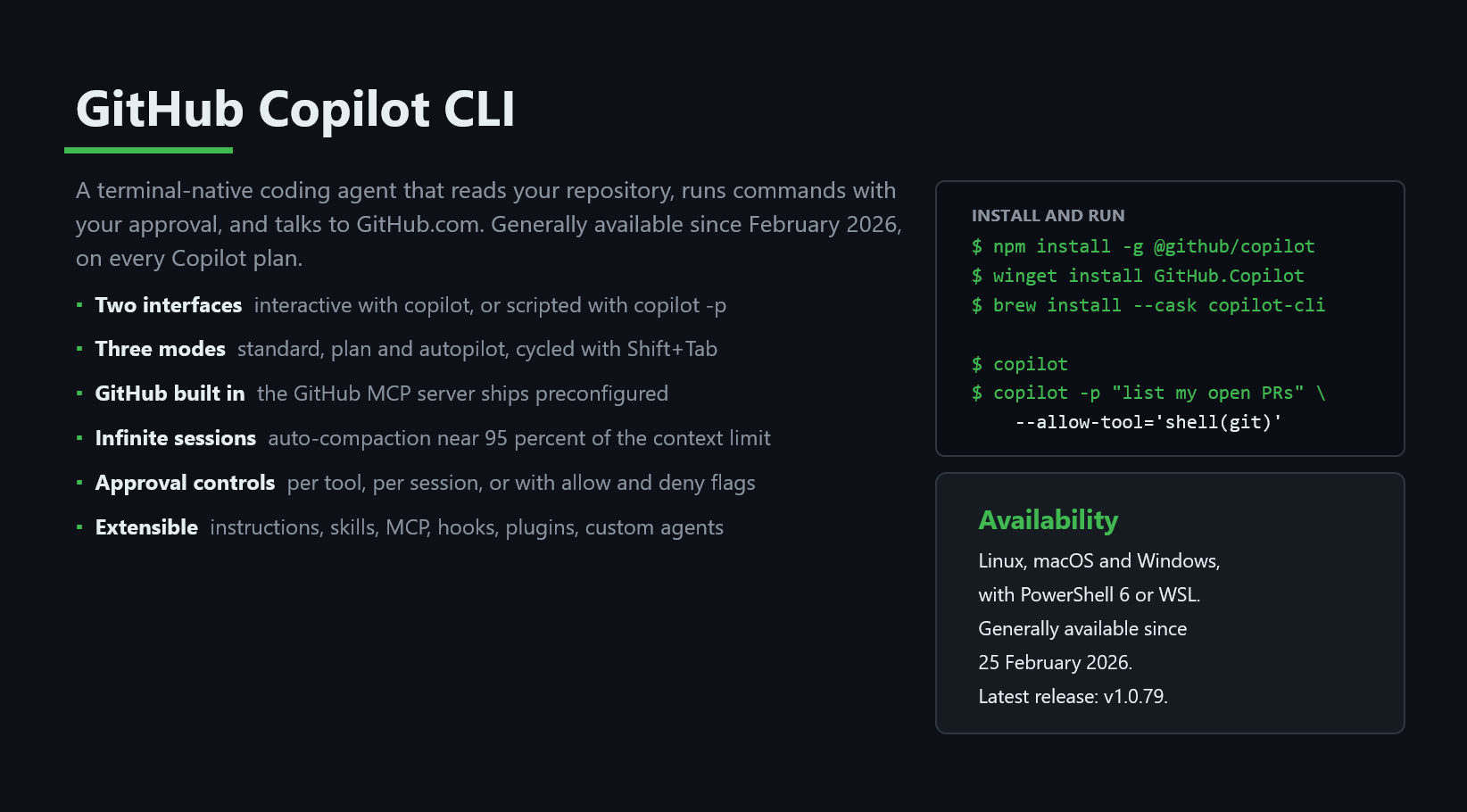
A terminal-native coding agent that reads your repository, runs commands with your approval, and talks to GitHub.com. Generally available since February 2026, on every Copilot plan.
- Two interfaces - interactive with
copilot, or scripted withcopilot -p. - Three modes - standard, plan and autopilot, cycled with
Shift+Tab. - GitHub built in - the GitHub MCP server ships preconfigured.
- Infinite sessions - auto-compaction near 95% of the context limit.
- Approval controls - per tool, per session, or with allow/deny flags.
- Extensible - instructions, skills, MCP, hooks, plugins, custom agents.
npm install -g @github/copilot
winget install GitHub.Copilot
brew install --cask copilot-cli

copilot
copilot -p "list my open PRs" --allow-tool='shell(git)'
Available on Linux, macOS and Windows, with PowerShell 6 or WSL.
Cloud and local sandboxes
As Copilot CLI takes more actions on your behalf - running shell commands, editing files, calling MCP servers - it needs somewhere safe to do that work. Sandboxes are the execution platform behind that: isolated environments that let Copilot interact with your code and tools securely, either on your own machine or in a fully isolated cloud environment.
Public preview
Cloud and local sandboxes are in public preview and subject to change.
Local sandboxing
Runs on your own machine with restricted filesystem, network and system access. Free on every Copilot plan. Enable with /sandbox enable (start the CLI with --experimental first).
Cloud sandboxing
Runs the whole CLI session remotely in an ephemeral, isolated Linux environment hosted by GitHub. Billed by usage. Start with copilot --cloud --experimental.
Local sandboxing is powered by Microsoft eXecution Container (MXC), which
maps a single sandbox policy onto the best isolation mechanism for your OS -
Seatbelt on macOS, bubblewrap on Linux, ProcessContainer on Windows Insiders
builds. You control what's readable, writable, and reachable over the
network, whether Git/gh credentials are exposed inside the sandbox, and
whether local MCP/language servers are sandboxed too. Enterprises can require
it and lock the policy via managed settings.
Cloud sandboxing is built on Azure Container Apps Sandboxes, with GitHub providing identity, policy and billing. It's useful for offloading compute-heavy tasks without tying up your laptop, picking a session back up from a different device, and applying the same governance you already use for the Copilot cloud agent - cloud sandbox policy shares configuration with cloud agent policy. Sessions move through three states: Active, Stopped (snapshotted so you can resume later) and Deleted (removed for good). An organisation or enterprise owner has to turn on the Cloud Sandbox access policy before members can use it.
Learn more: About cloud and local sandboxes.
Delegating tasks to Copilot
Once you're comfortable approving Copilot's tool calls one at a time, the next step is letting it run further ahead on its own - either on your machine or handed off to GitHub entirely.
Autopilot mode
Runs locally in your CLI session with full permissions granted up front - Copilot works through a task without stopping to ask, and you watch progress in real time. Cycle to it with Shift+Tab, or run it directly.
/delegate
Hands the task to Copilot cloud agent on GitHub. Copilot commits a checkpoint, opens a draft pull request, and keeps working in the background - even after you close your laptop.
# Autopilot, programmatically, capped at 10 continuations
copilot --autopilot --yolo --max-autopilot-continues 10 -p "fix the failing tests"

# Delegate to Copilot cloud agent from an interactive session
/delegate complete the API integration tests and fix any failing edge cases

# Shorthand for /delegate
& complete the API integration tests and fix any failing edge cases
Use autopilot when you want hands-free execution but still want to be
the one watching it happen. Use /delegate when you want to hand a task
off completely - Copilot cloud agent will open the pull request and request
your review once it's done.
Learn more: Delegating tasks to Copilot.
GitHub Copilot app
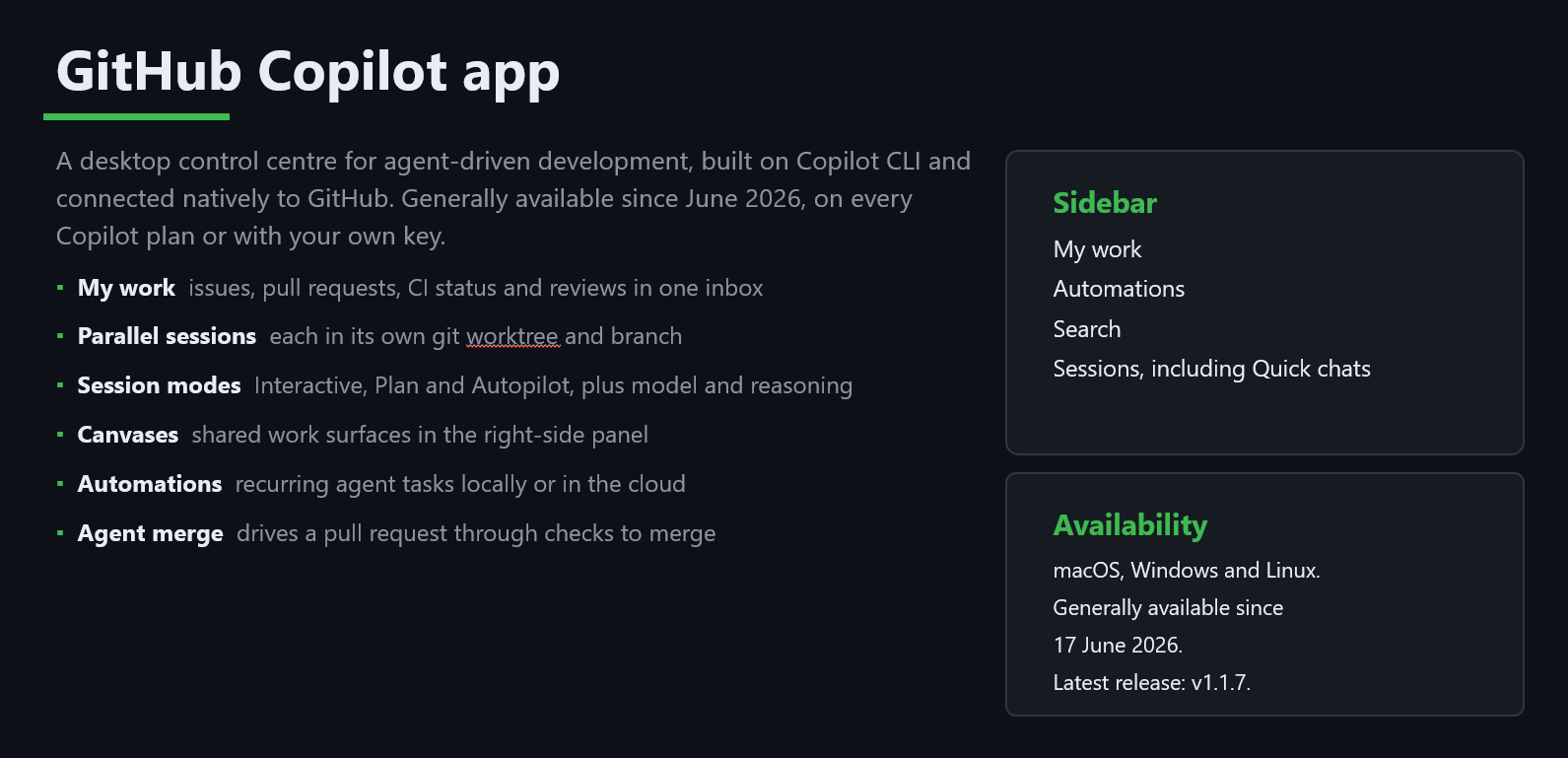
A desktop control centre for agent-driven development, built on the Copilot CLI and connected natively to GitHub. Generally available since June 2026, on every Copilot plan or with your own key.
- My work - issues, pull requests, CI status and reviews in one inbox.
- Parallel sessions - each in its own git worktree and branch.
- Session modes - Interactive, Plan and Autopilot, plus model and reasoning controls.
- Canvases - shared work surfaces in the right-side panel.
- Automations - recurring agent tasks, locally or in the cloud.
- Agent merge - drives a pull request through checks to merge.
Available on macOS, Windows and Linux.
Working across branches in parallel with worktrees
Every surface above leans on the same underlying Git feature to run more than
one thing at once: git worktrees. A worktree is a second working
directory checked out from the same repository, on its own branch, sharing
one .git history - so you can have several branches checked out and built
independently, side by side, without stashing changes, switching branches,
or cloning the repo again.
That's exactly why worktrees have become the default unit of isolation for
coding agents. The Copilot CLI's /worktree command spins up an isolated
tree and conversation for a task; the Copilot app runs each parallel session
in its own worktree and branch; and this pattern is spreading well beyond
Copilot itself - GitHub Desktop 3.6 added native worktree support, so you
can switch between a main worktree and several linked worktrees from a
"Current Worktree" menu right in the toolbar, alongside Copilot-powered
commit message authoring and merge conflict resolution (both now built on
the same Copilot SDK you saw earlier).
Why it matters for agents
An agent working in its own worktree can't accidentally clobber the branch you're actively editing - each session gets a clean, isolated tree to run in.
Why it matters for you
Review a hotfix, keep a side-project building, and let an agent iterate on a feature branch - all from the same clone, without stash/switch/clone gymnastics.
Where you'll see it
Copilot CLI (/worktree), the Copilot app (one worktree per session), and now GitHub Desktop 3.6 for everyday Git work alongside your agent sessions.
Learn more: GitHub Desktop 3.6: worktrees and deeper Copilot integration.
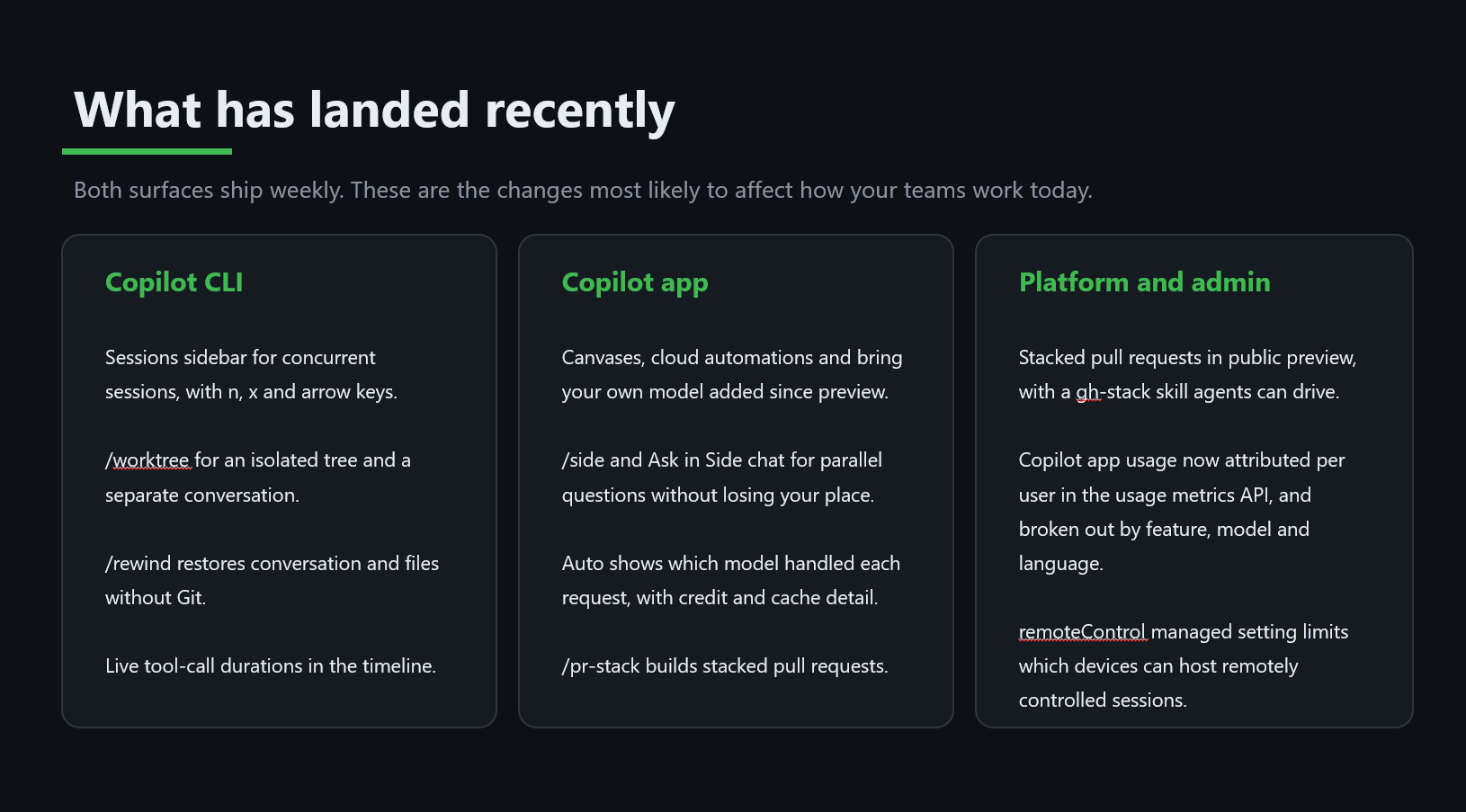
What has landed recently
Both surfaces ship weekly. A few changes that are most likely to affect how your team works today:
Copilot CLI
Sessions sidebar for concurrent sessions · /worktree for an isolated tree and conversation · /rewind restores conversation and files without Git · live tool-call durations in the timeline.
Copilot app
Canvases, cloud automations and bring-your-own-model · /side and Ask in Side chat for parallel questions · Auto shows which model handled each request · /pr-stack builds stacked pull requests.
Platform and admin
Stacked pull requests in public preview · Copilot app usage attributed per user in the usage metrics API · remoteControl managed setting limits which devices can host remotely controlled sessions.
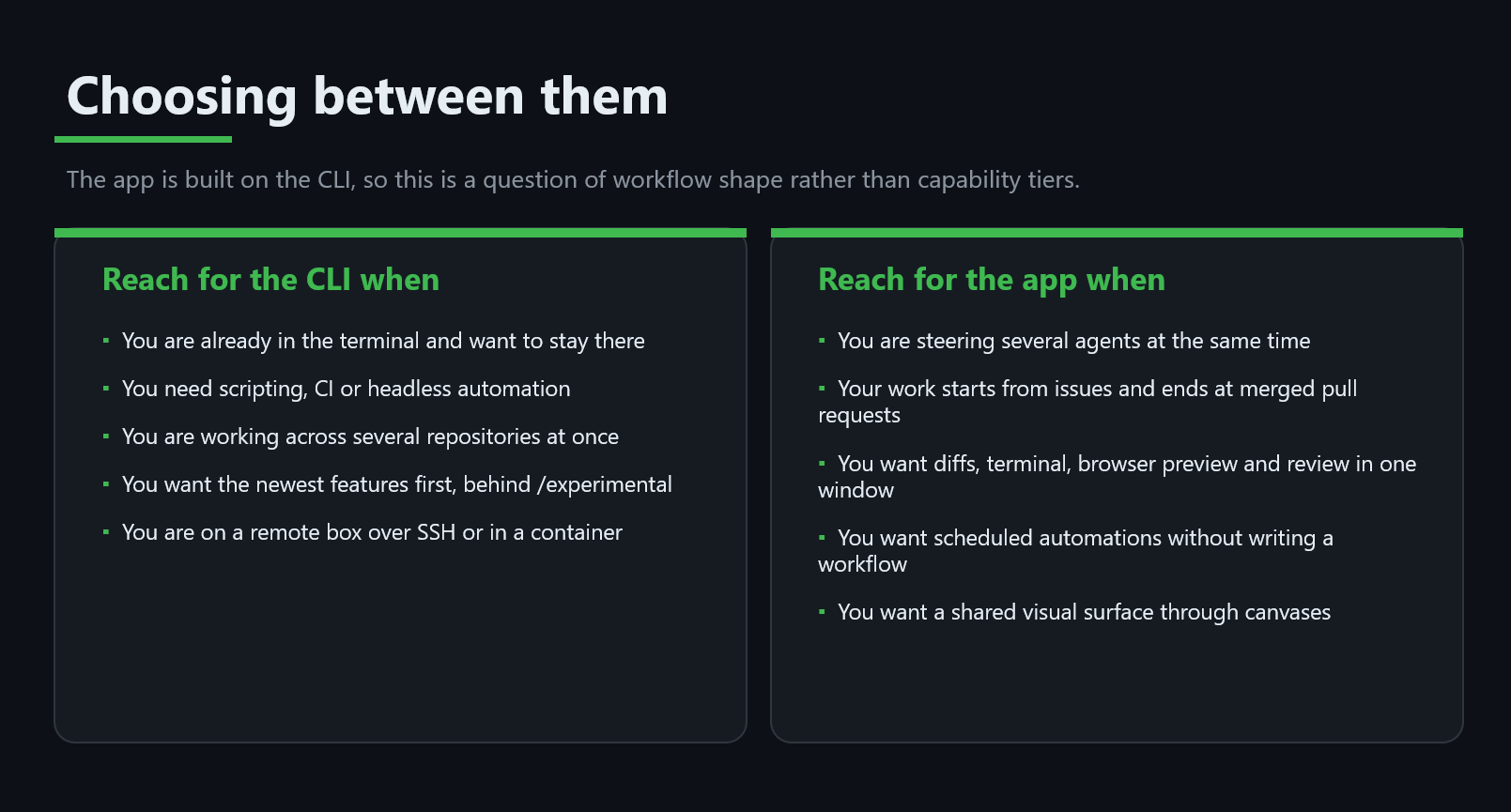
Choosing between them
The app is built on the CLI, so this is a question of workflow shape rather than capability tiers.
Reach for the CLI when you're already in the terminal, need scripting/CI
or headless automation, are working across several repositories at once,
want the newest features first behind /experimental, or you're on a remote
box over SSH or in a container.
Reach for the app when you're steering several agents at once, your work starts from issues and ends at merged pull requests, you want diffs, terminal, browser preview and review in one window, you want scheduled automations without writing a workflow, or you want a shared visual surface through canvases.
Where to start
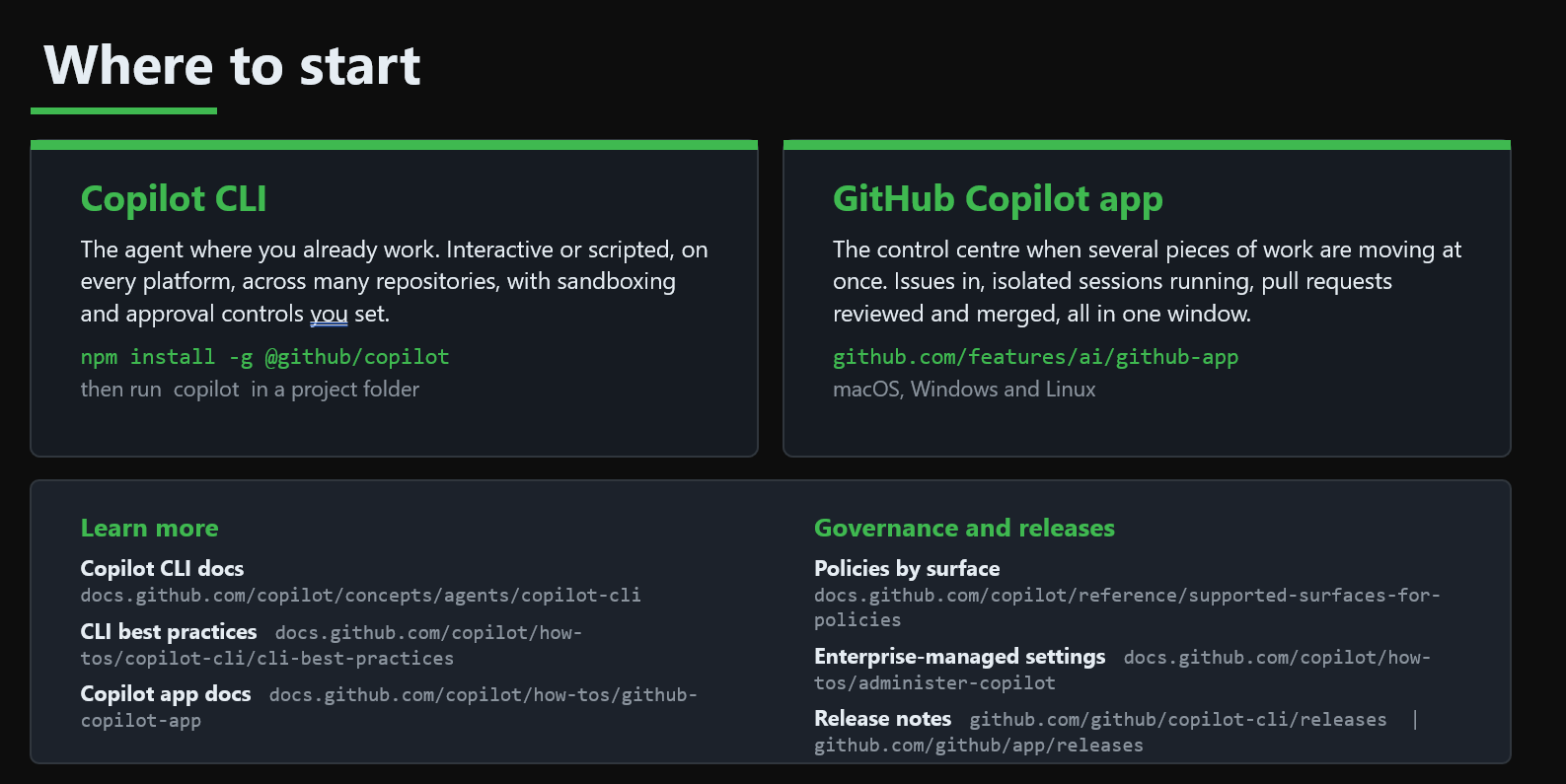
Copilot CLI - the agent where you already work. Interactive or scripted, on every platform, across many repositories, with sandboxing and approval controls you set.
npm install -g @github/copilot
# then run `copilot` in a project folder
GitHub Copilot app - the control centre when several pieces of work are moving at once. Issues in, isolated sessions running, pull requests reviewed and merged, all in one window. Get it from github.com/features/ai/github-app (macOS, Windows and Linux).
Learn more: Copilot CLI docs · CLI best practices · Copilot app docs · Policies by surface · Enterprise-managed settings